Tutorial
How to make an AI product photo that matches your listing
You need a phone photo of the actual product, a free image-tool account and about fifteen minutes. The whole method is to keep the product frozen and only change light, surface and framing — everything else goes wrong.
What you need before step one
- A phone photo of the product, taken in daylight, in focus
- A plain background behind the product (a white wall or paper is enough)
- A free account on an image tool that accepts a reference image
- A browser; no GPU needed
The finished image should look like it was shot on a table with a soft light, not like it was generated. That is the whole test: if a buyer can tell, the image is not doing its job.
This tutorial uses one real photo of the product and changes only the scene around it. The method works with any tool that accepts a reference image; the screenshots here are from Aurora Canvas, which has a free tier large enough to finish this without paying.
What you need before starting
A phone photo is enough, but it has to be honest: daylight, no flash, product in focus, plain background. Retouched reference photos produce retouched-looking output, and the model has no way to know which flaws you intended to keep.
If the product has fine text on it, shoot closer than you think you need to. Label legibility in the reference is the single biggest factor in whether the label survives generation.
Why the prompt describes the scene only
Every failure in product generation traces back to the same mistake: describing the product. The moment you write “a white ceramic candle jar”, the model starts drawing its own jar and your reference becomes a suggestion.
Describe light, surface, shadow and framing. Those four variables are enough to move a product from a kitchen table to a studio, and they leave the object alone.
Step by step
- Upload the reference and crop tightly, so the product edge touches the frame on all sides.
- Paste the scene template, replacing only the bracketed parts.
- Generate four variants rather than one.
- Pick the variant with the most believable shadow, then fix the shadow: 3-5% grain, slight edge blur.
- Export layers at 2x, then crop to 1:1 and 4:5.
The three failures worth knowing
The label warps. Almost always a loose crop. Re-crop and regenerate; prompt changes will not fix it.
The product floats. The prompt asked for a long shadow but the reference has no ground contact. Add “contact shadow directly beneath the product” and regenerate.
The colour drifts. You described the product colour somewhere in the prompt. Remove every colour word that refers to the product itself and keep only light temperature.
When not to use this
If the product is transparent, reflective or has moving parts, a generated scene will fight you and a real lightbox is faster. Glass needs caustics, and most models render it as plastic on the first try.
For the workflow that pairs this with a local text model — writing listing copy from the same product spec — see the Nimbus 7B local setup.
Step by step
Take a reference photo that gives the model nothing to invent
Daylight, no direct sun, product filling about 70% of the frame, plain background. Do not retouch it first — the model copies what it sees, including the flaws you were planning to fix later.
Describe only what changes
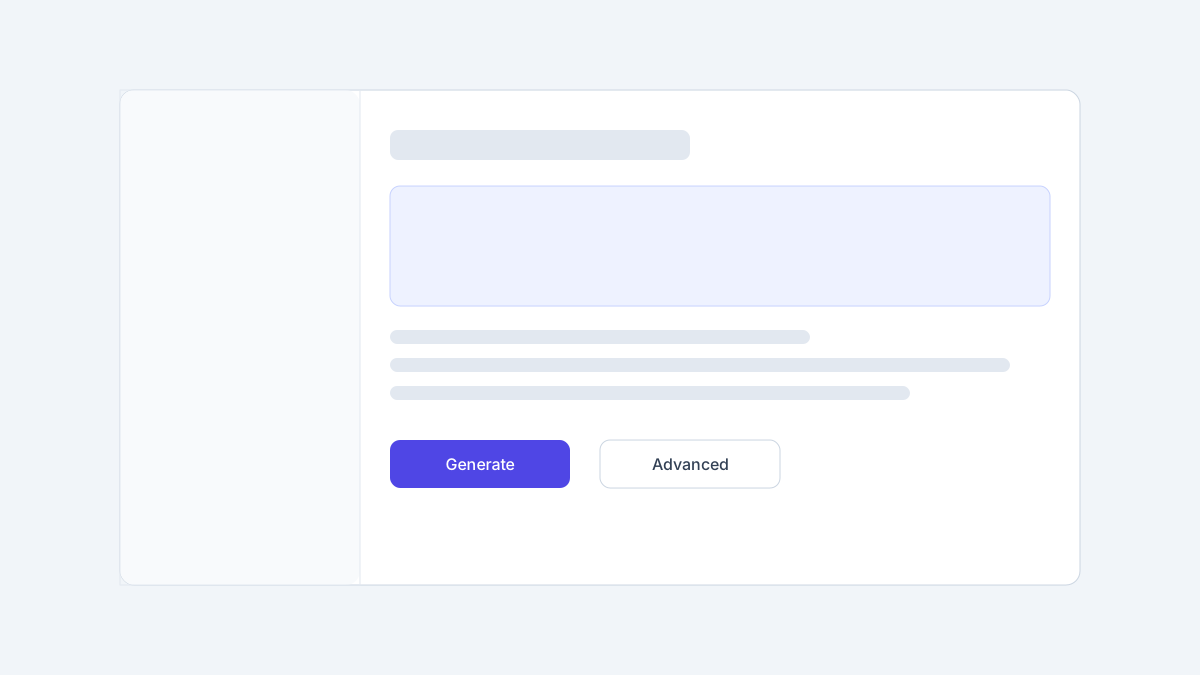
The prompt should never describe the product. It should describe the light, the surface and the framing. Use the template below and swap the bracketed parts.
Generate four variants, not one
One image at a time hides how much variance the model has. Four variants show you whether the shadow is stable or lucky.
Fix the shadow before you export
Generated shadows are too clean. Add grain at 3-5% and a very slight blur on the shadow edge; that single change removes most of the uncanny feeling.
Export at 2x and crop for the listing
Export layers, then crop to the marketplace ratio. Keep a 1:1 and a 4:5 crop of the same frame so you do not need a second generation.
Copy the prompt
Each block is the exact text we used. Copy it as is, then change one variable at a time — changing two makes the result impossible to compare.
Keep the product exactly as in the reference: same shape, same label, same material.

Scene: [surface — e.g. warm oak table, matte concrete, linen cloth]
Light: [lighting — e.g. soft window light from the left, single studio softbox, late afternoon sun]
Shadow: [shadow — e.g. soft contact shadow to the right, long low shadow]
Framing: [framing — e.g. three-quarter view, eye level, product centred with space above]
Style: clean commercial photography, natural colour, no text overlays, no props touching the productextra text, watermark, logo changes, altered label, floating product, hard black shadow, oversaturated colour, plastic skin, multiple productsSame scene, change only the light direction. Four variants: left, right, top-left, backlit rim.Getting past the first decent result
- For glass and liquids, add 'visible caustics on the surface' — without it the model renders glass as opaque plastic.
- If the label warps, your reference crop is too loose. Re-crop so the product edge touches the frame edge on all four sides.
- Shoot the reference with the product slightly rotated from the final angle. Models copy straight-on framing too literally and lose depth.
- Keep the same prompt and only change the surface colour for a consistent catalogue; changing two variables at once makes results incomparable.
Troubleshooting
Can I do this without a reference photo?
You can, but the product will be invented, which is a problem if you are listing a real item. Buyers compare the photo to what arrives.
Which ratio should I export for marketplaces?
Export 1:1 for the main image and 4:5 for ads from the same generation. Cropping the square to 4:5 loses the top of tall products, so frame with headroom from the start.
Why does the product colour shift?
The scene prompt is overriding the reference. Move all colour words out of the prompt and let the reference supply the colour; describe only light temperature.
How many credits does one listing need?
Roughly five — four initial variants plus one retry on the weakest shadow. Sixty free credits therefore covers about ten listings.
Related tutorials
Aurora Canvas
A browser-based image generator aimed at people who need a usable product shot, not a toy demo. The free tier resets monthly and is generous enough to finish one small project before you decide to pay.
- Sample
- Image generation
- Product photography
Why Evergreen Guides Beat AI News, Even on Traffic
News gets the spike and the spike is real. But a page that is wrong in ten days cannot accumulate links, cannot be improved, and cannot carry a paywall. The durable middle ground is a weekly deep dive tied to an evergreen guide.
- Sample
- Strategy
- Publishing
Nimbus 7B
A 7.2B instruction model with an Apache 2.0 licence and an 8K context window. Small enough to run on a single consumer card, and the first open model in a while whose quantised output does not fall apart on structured tasks.
- Sample
- Text models
- Local deployment